MFA Onboarding Troubleshooting Guide
Overview
While setting up Multi-Factor Authentication (MFA) for the Acreto Connect Client is typically a seamless process, users or administrators may occasionally run into credential mismatches, expired sessions, or missing profile downloads.
This guide covers the most common onboarding pitfalls and provides step-by-step instructions to complete the activation and establish.
Check list befor you start
Before attempting to troubleshoot onboarding or authentication issues, administrators should always verify the user’s status within the Console. Confirming these basic indicators first often isolates the root cause immediately.
- Log into Console and open the targeted ecosystem.
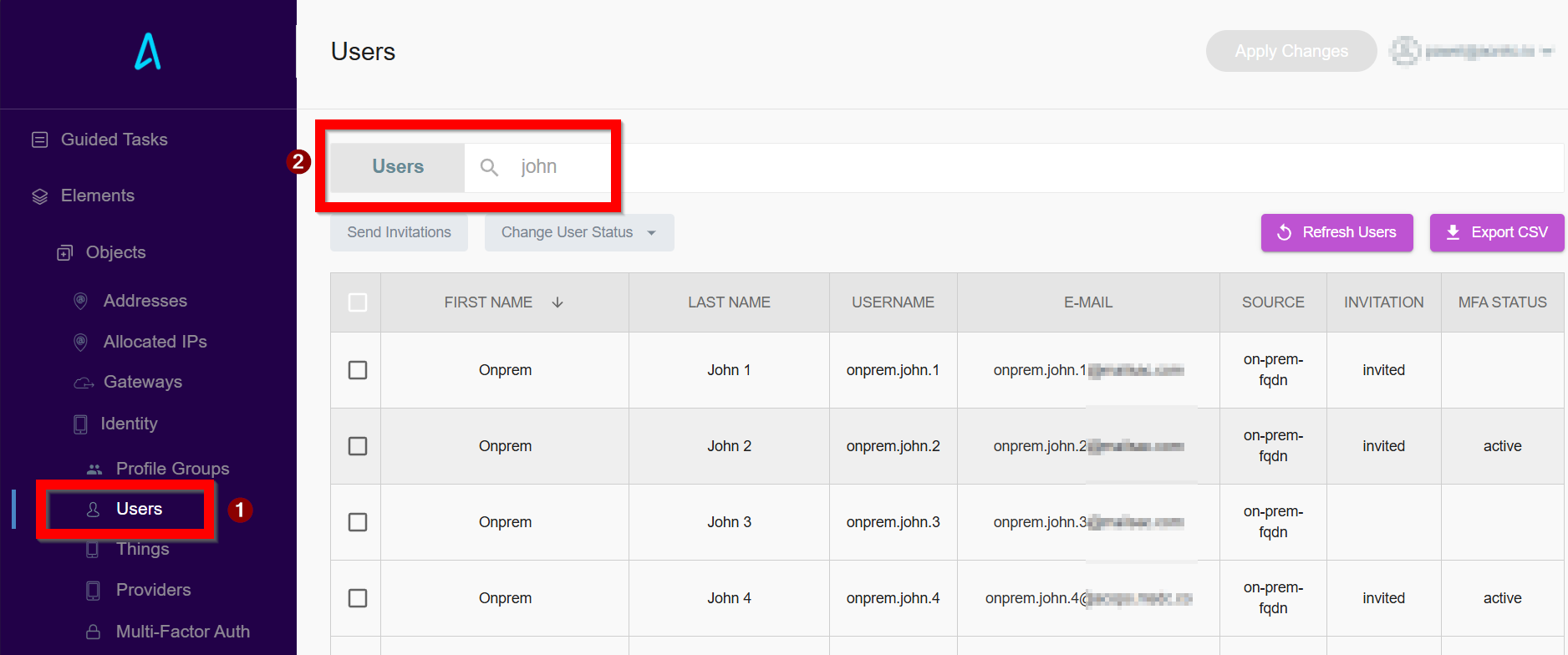
- Navigate to the (1) Users list and type in (2) search name of affected user.
- Review the Invitation and MFA Status columns, which serve as the primary indicators of the user’s current state:
- Invitation - Shows whether the user has been formally invited to the ecosystem. If this column is empty, the user has never been invited. Even if they somehow obtain a VPN configuration file, they will be unable to authorize or establish a connection.
- MFA status - Confirms whether the user has successfully completed their registration. An Active status means the second-factor authentication is configured correctly. Any other status indicates that the MFA onboarding process is incomplete or failed.
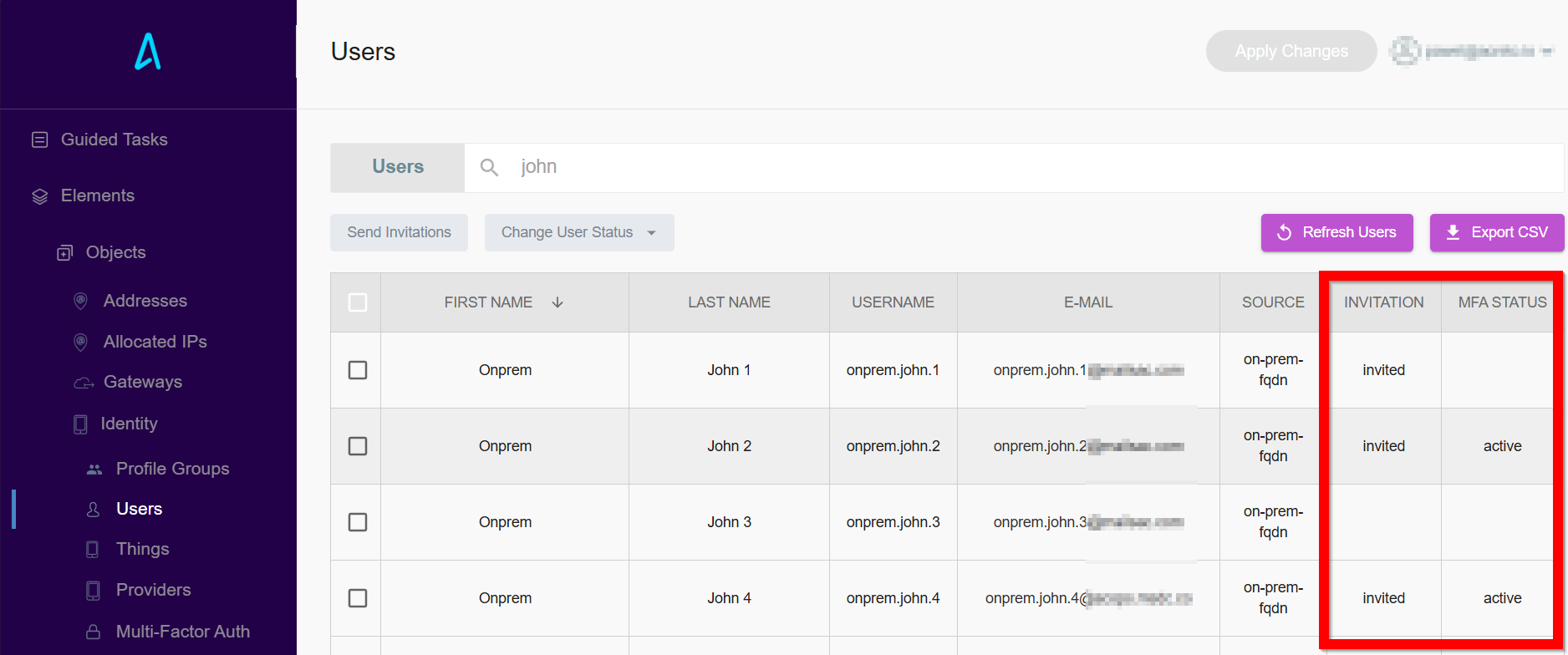
Checking these two columns is a critical triage step for administrators. Always perform these basic checks before moving forward with deeper authorization or MFA troubleshooting.
Common Onboarding Pitfalls
1. Using Email Instead of Username
The Issue: Users often instinctively type their full email address (e.g., john@company.com) into the username field during activation.
The Fix: You must enter only your exact Identity Provider/Active Directory username (e.g.,john), as configured in the Ecosystem console.
2. Password Confusion
The Issue: Unsure whether to create a new password or use an existing one.
The Fix: Always use your existing Active Directory (AD) / Identity Provider password. Acreto does not store your passwords; it only validates them against your organization’s directory and stores the second-factor (MFA) token.
3. Reusing Exploded/Expired MFA Tokens
The Issue: Attempting to type in a One-Time Password (TOTP) from an authenticator app or email a second time if the page fails to advance.
The Fix: MFA codes are strictly single-use. If an operation fails, you must wait for a fresh code to generate or request a new email token.
4. How to Reset a Stuck Onboarding Session
If an activation attempt fails repeatedly, the session can get stuck in an unknown state. Admins and users should follow these steps to wipe the slate clean and start over.
Step 1: Admin Reset in the Ecosystem
- Log into the Acreto Ecosystem Console.
- Navigate to the user list and select the affected user.
- Click Reset MFA and Logoff to clear out any dangling or stuck sessions.
Select the user again and click Send Invitation to generate a fresh onboarding link.
Step 2: User Clean Slate Setup
- On the user’s computer, open a browser window in Incognito / Private mode to ensure no broken cookies or cached sessions interfere.
- Copy the Invitation Link directly from the new email.
- Paste the link into the Incognito browser window.
Step 3: Complete the Registration Properly
- Enter the exact AD Username (not the email address).
- Enter the current AD Password.
- Choose the preferred MFA method (Email or OTP App) and complete the verification step.
5. What to Do If the VPN Profile Doesn’t Download Automatically
In some scenarios, a user may successfully activate their MFA and register their authenticator application, but the portal fails to automatically trigger the VPN profile download.
Do not attempt to click the original invitation link again. Re-using the activation link on an already active account will result in authentication loops.
The Solution:
- Direct the user to your ecosystem’s dedicated authentication portal.
- Have the user log in using their newly configured MFA.
- Download the .vpn configuration file directly from the user portal dashboard.
- Import the profile into the Acreto Connect Client.
Frequently Asked Questions (FAQ)
Q: Do we need to select “Reset MFA and Logoff” for every single new user we onboard?
No. This option is only recommended if a previous onboarding attempt failed, or if an invitation session is stuck in an unknown state. For normal deployments, simply sending the initial invitation is sufficient.
Q: How does a user download their VPN profile onto a secondary or replacement laptop?
Once a user is fully activated, they do not need a new invitation link. They simply need to visit their dedicated Ecosystem User Portal link, log in with their credentials and MFA token, and click download.